
Feishu Channel Integration
This page guides administrators through Feishu bot integration: creating an app on the Feishu Open Platform, configuring the channel in the admin console, and verifying user binding and conversations. Channel credentials are configured on the admin console "Channels" page and persisted to identity-service; do not use FEISHU_BIND_* environment variables (see Business Configuration - Channel Connectors).
Prerequisites
- A Feishu Open Platform administrator account (
https://open.feishu.cn/app). - FinClaw deployed, with an admin account registered and listed in
ADMIN_EMAILSin.env(see Admin Registration). - feishu-connector running normally (default port 26460, health check
GET /health, see Health Check).
Create the App on the Feishu Open Platform
Create the App and Get Credentials
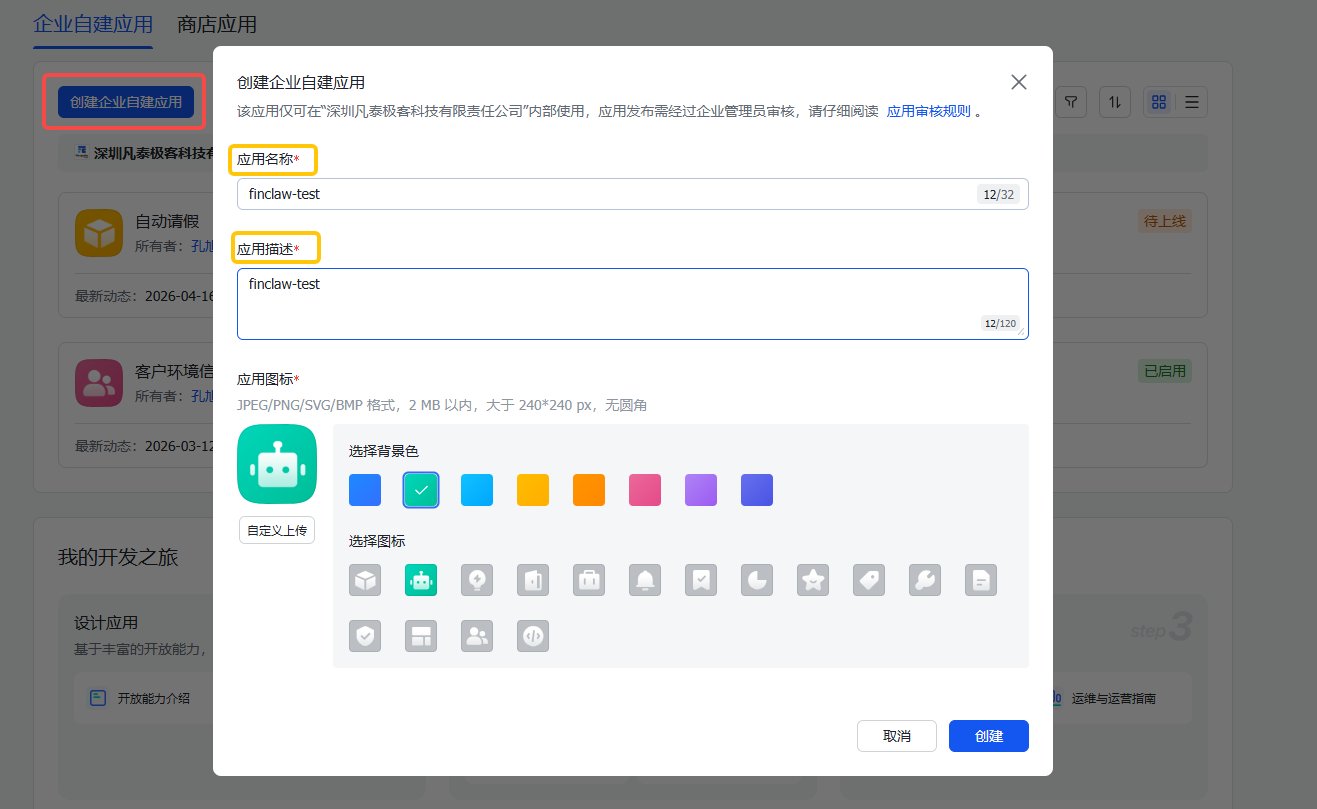
Open https://open.feishu.cn/app in a browser, sign in with the Feishu administrator account, click "Create Enterprise Custom App", fill in the app name, description, and icon, and submit.
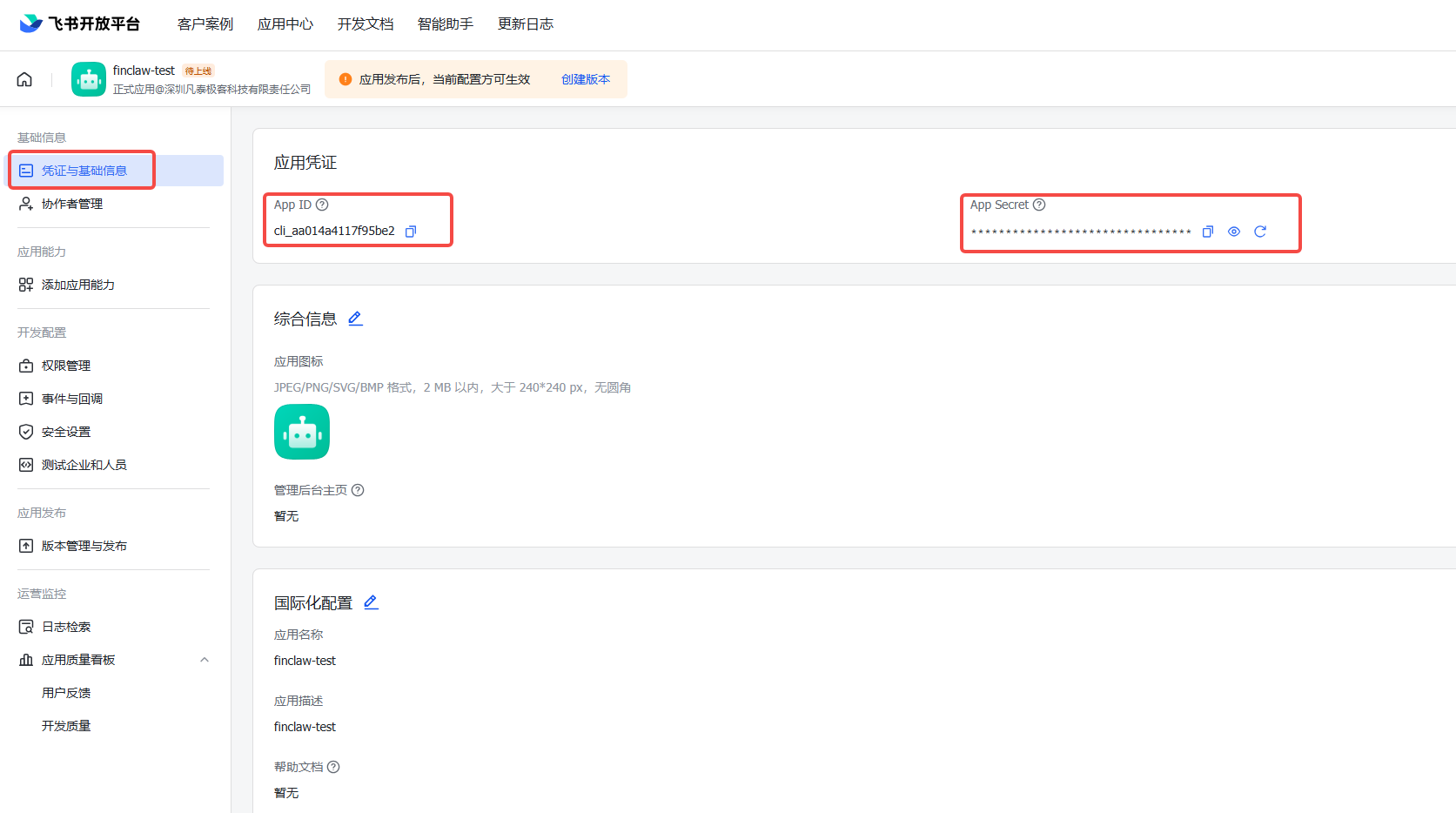
On the app detail page under "Credentials & Basic Info", record the App ID and App Secret (used in the admin console in the next section).
Configure Event Subscription
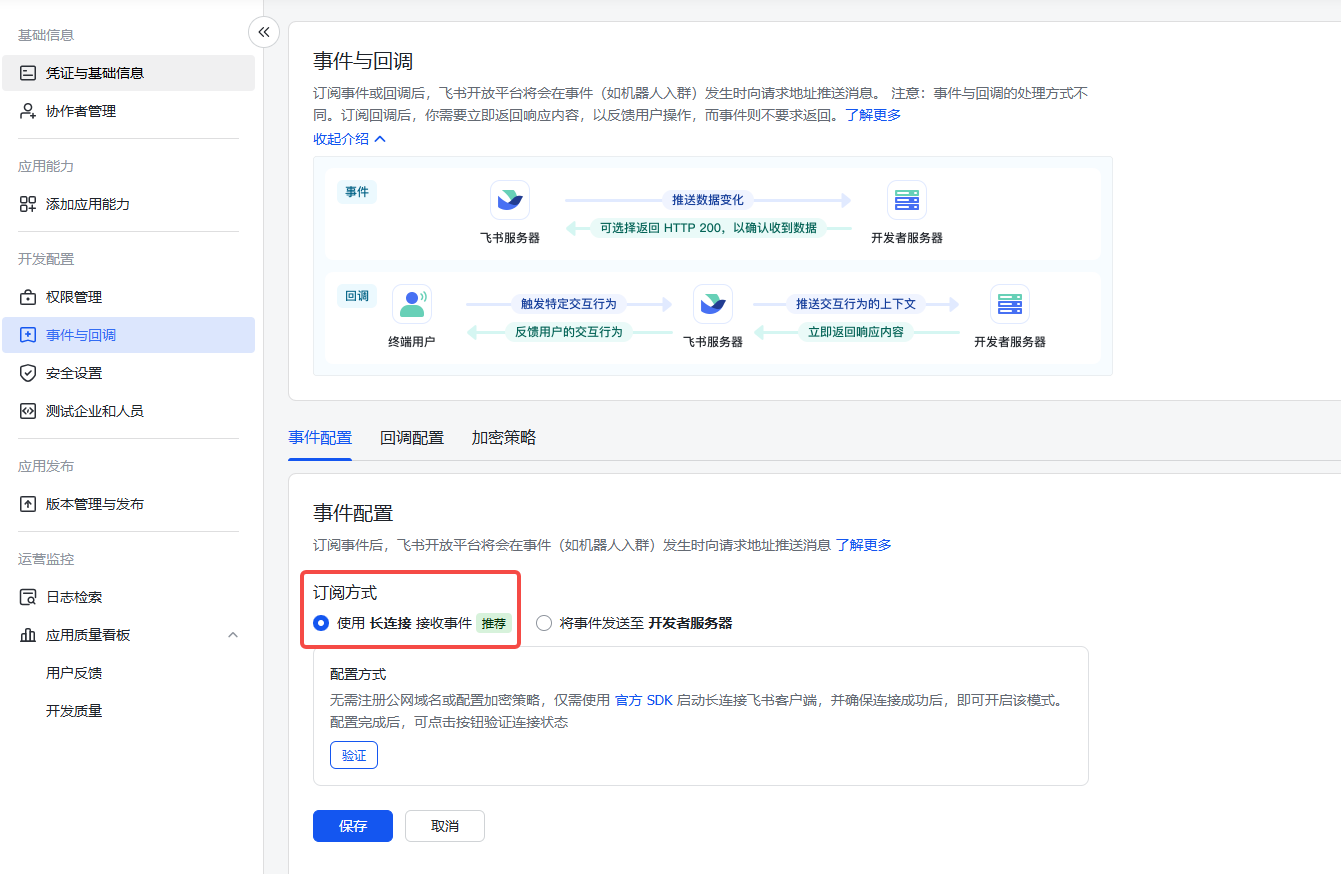
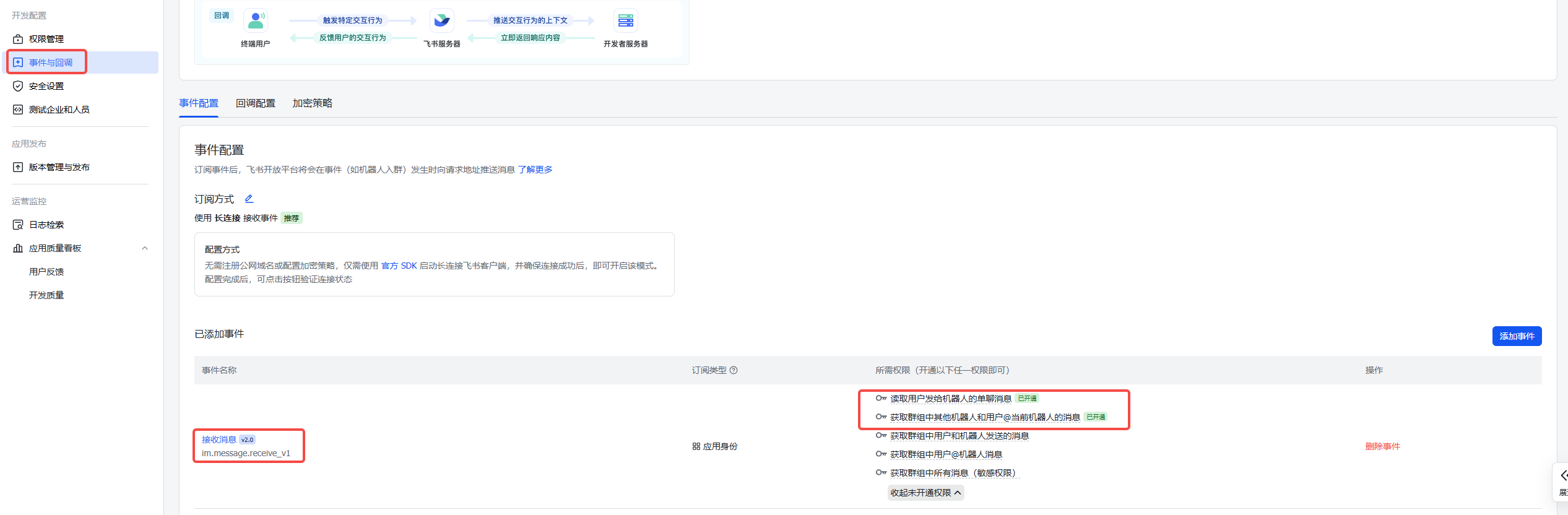
Under "Events & Callbacks" -> "Event Configuration", select "Receive events through a persistent connection (WebSocket)" and save. feishu-connector receives events over a WebSocket long connection; no public callback URL is required.
Under "Events & Callbacks" -> "Event Subscription", add the following events:
| Event | Event ID | Purpose |
|---|---|---|
| Receive message | im.message.receive_v1 | Receive messages sent to the bot |
| Card action callback | card.action.trigger | Handle button callbacks on message cards (bind card, etc.) |
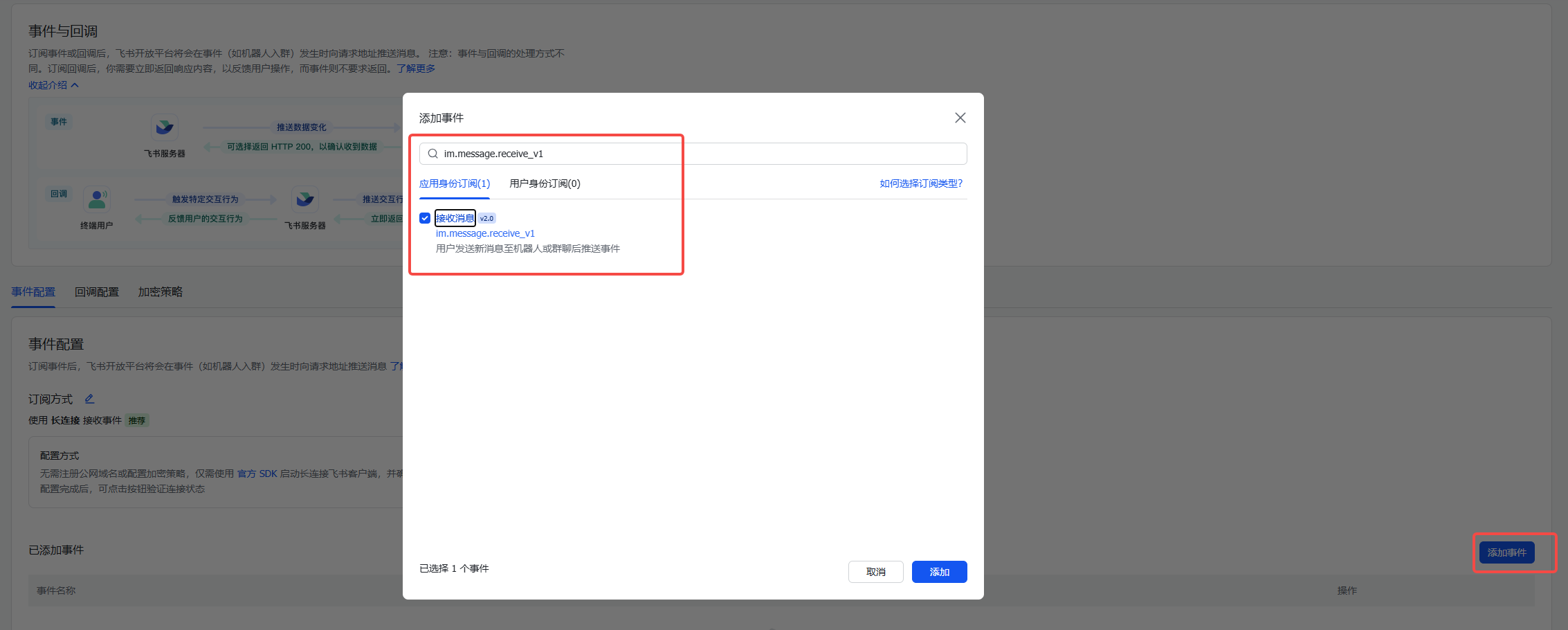
The event subscription list after adding:
Enable the Bot Capability
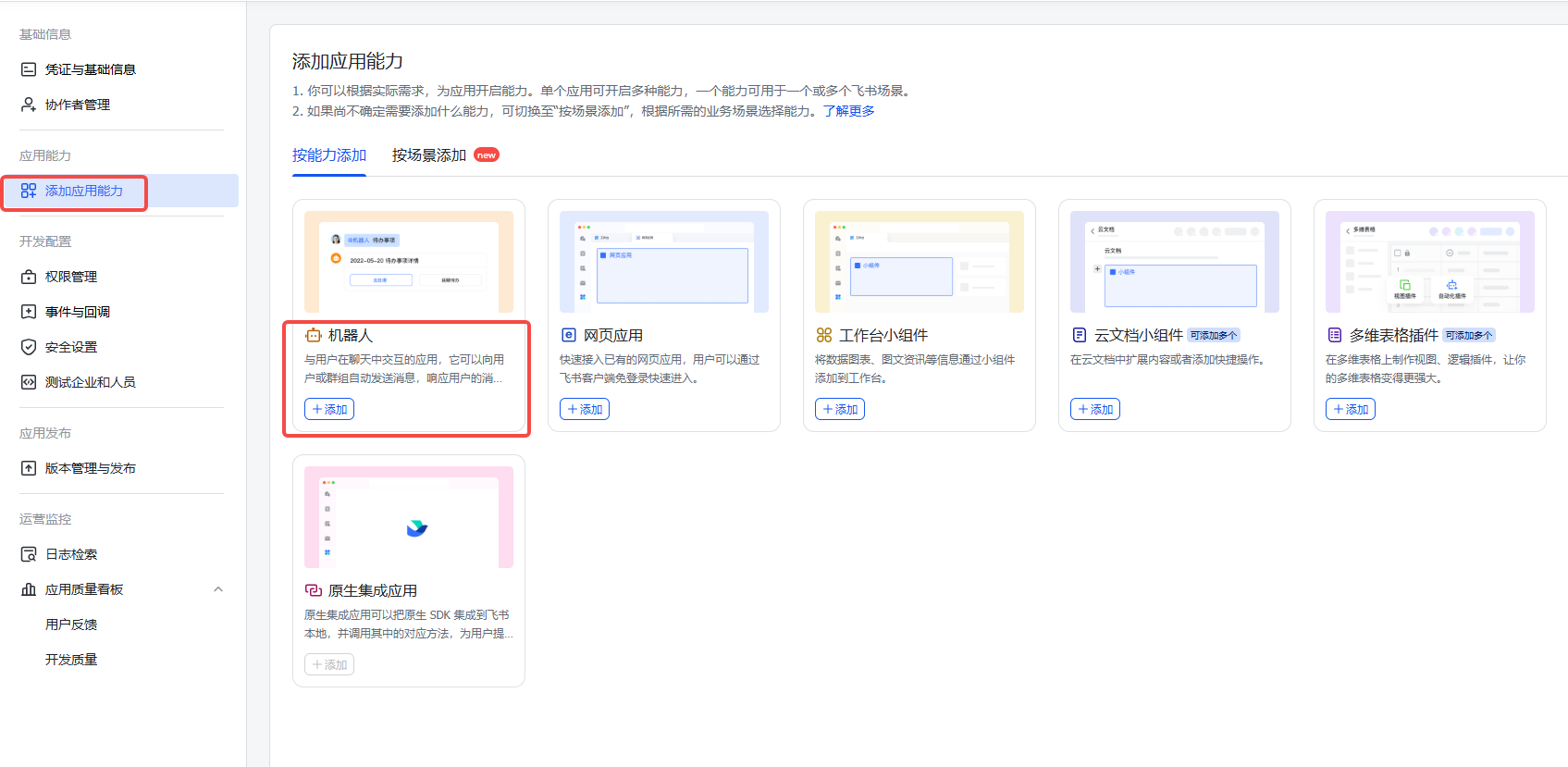
Under "Add App Capability" -> "Bot", enable the bot capability.
Grant Permissions
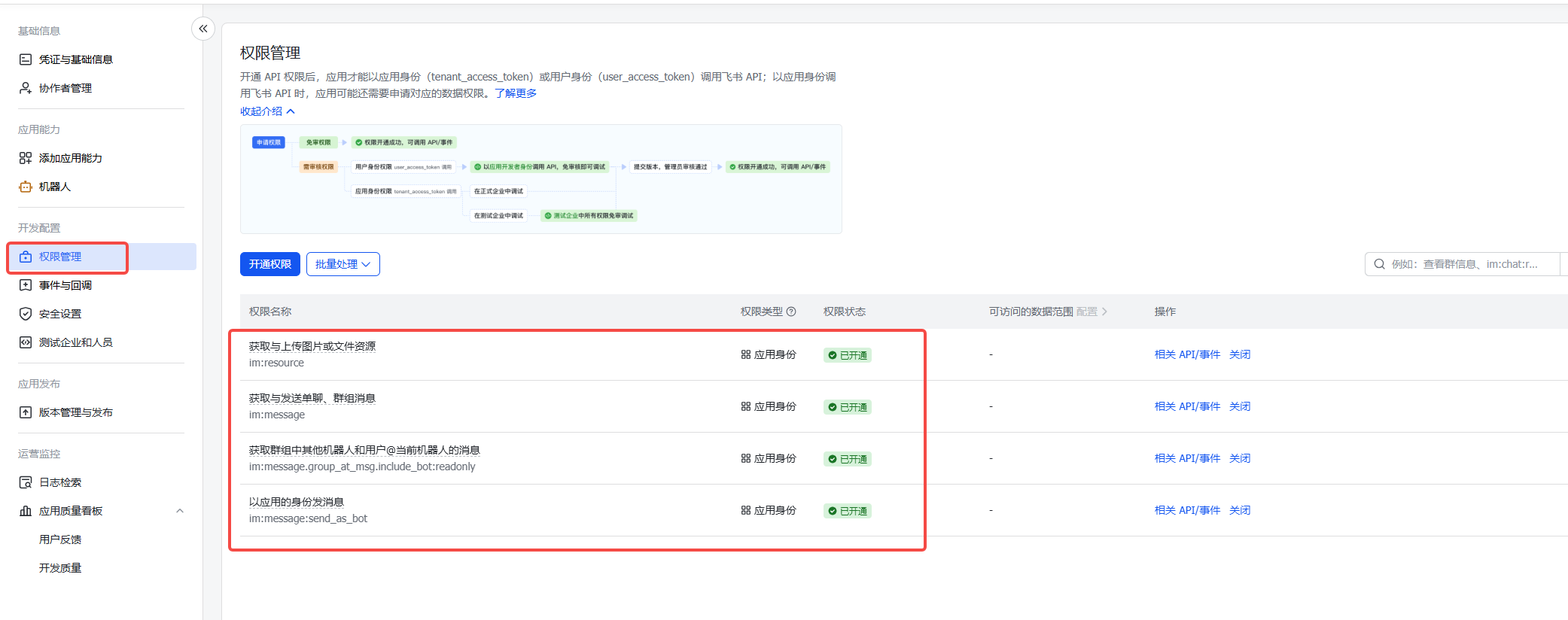
Under "Permission Management", search for and enable the following permissions:
| Permission | Purpose |
|---|---|
im:message | Read and send messages in private and group chats |
im:message:send_as_bot | Send messages as the bot |
im:resource | Access resource files in messages (images, files, and other attachments) |
Release the App
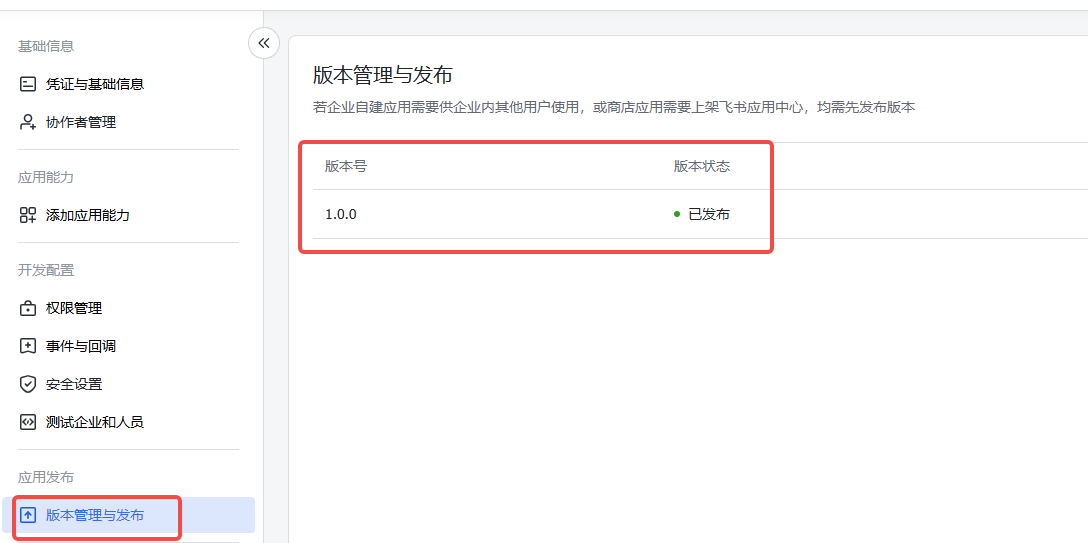
Under "Version Management & Release", create a version and submit it for review; the app takes effect after the review is approved.
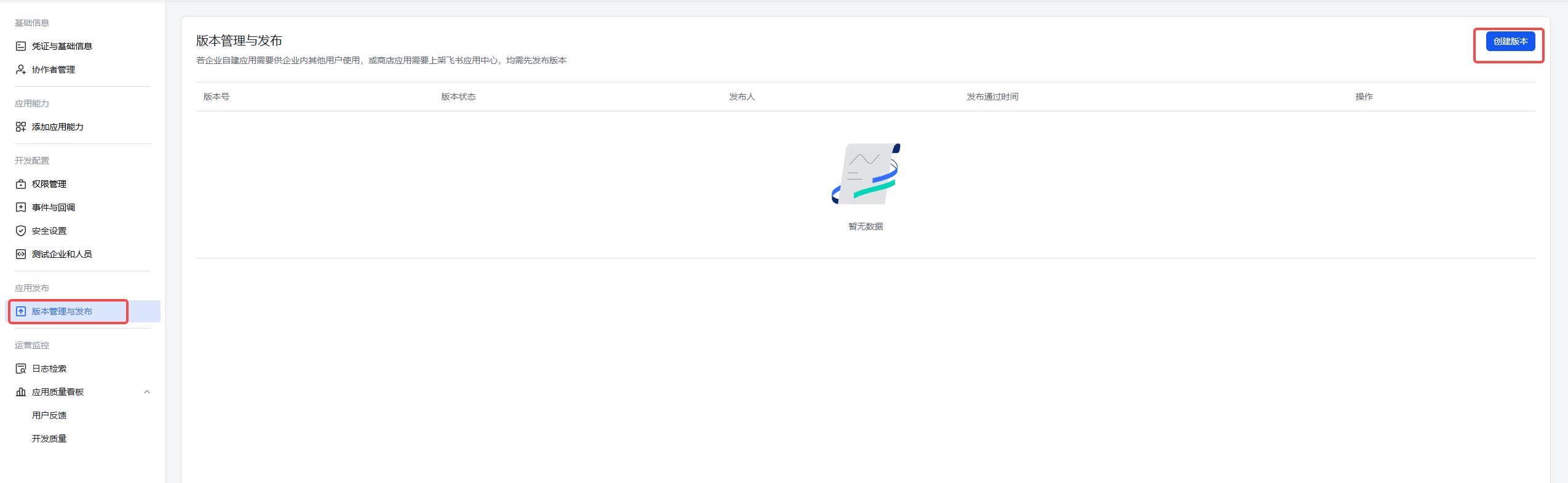
Verify: the app detail page shows a "Released" status, and the event subscription list contains both events above.
Configure the Channel in the Admin Console
Open the FinClaw admin console in a browser and sign in with an administrator account. Channel configuration takes effect per tenant: select the target tenant in the tenant dropdown first, then open the "Channels" page.
Find the "Feishu" channel card, click "Configure", fill in the App ID and App Secret recorded in the previous section, and save.
Under "Account Binding", fill in the bind base URL (bind_base_url, the publicly reachable FinClaw web address, e.g. https://chat.example.com). This address is shared by the feishu, dingtalk, and wecom channels; when a user taps the bind button in IM, the page {bind_base_url}/feishu-bind?token=... opens to complete login and binding.
The bind token signing secret
bind_state_secretis generated automatically by identity-service when the bind URL is set and is kept server-side; no manual configuration is required.
Turn on the "Enable" toggle of the Feishu channel and click "Save".
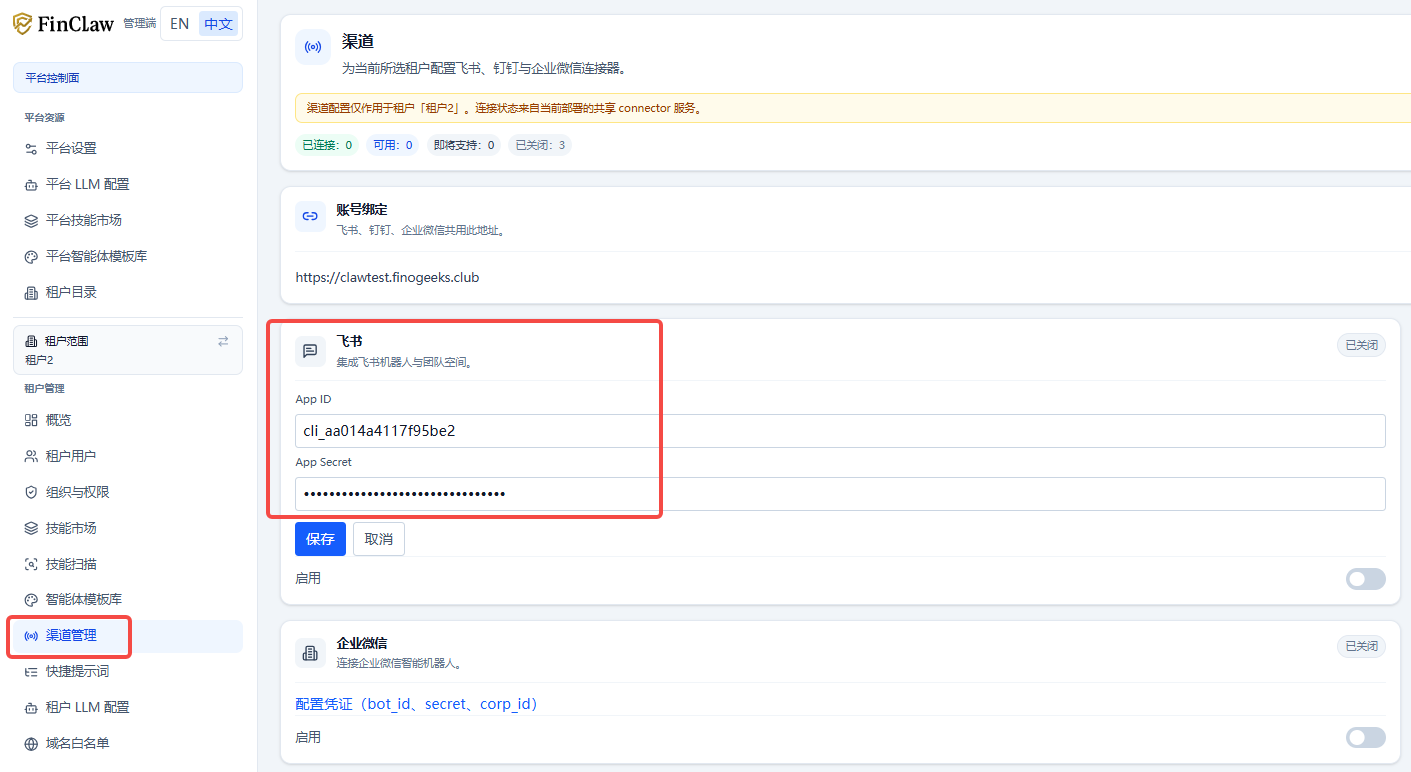
On save, identity-service calls POST /internal/reload on feishu-connector to trigger a config reload; the connector applies the new config in-process (rebuilding Feishu WebSocket connections as needed) without restarting the container.
Verify:
- The channel card status changes from "Available" to "Connected" (the status comes from the connector's
ws_connectedreport; allow a few seconds after saving and refresh the page). - feishu-connector logs show
feishu.connector.reloadandfeishu.lark_client.startedevents (see Logs). - You can run
doctor.sh; its "IM Channel Bind Config" section checks whether the bind configuration is complete (see Channel Connectivity Inspection).
User Binding and Usage
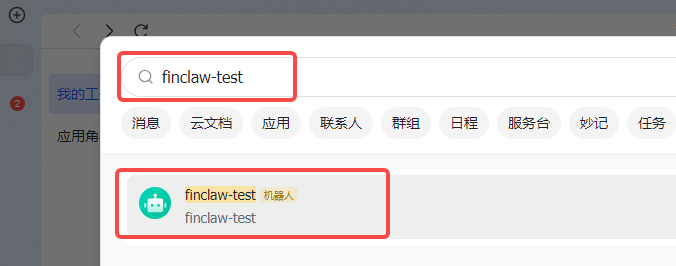
In the Feishu client, search for and open a conversation with the bot, then send "Hello" (send directly in a private chat; @mention the bot in a group chat).
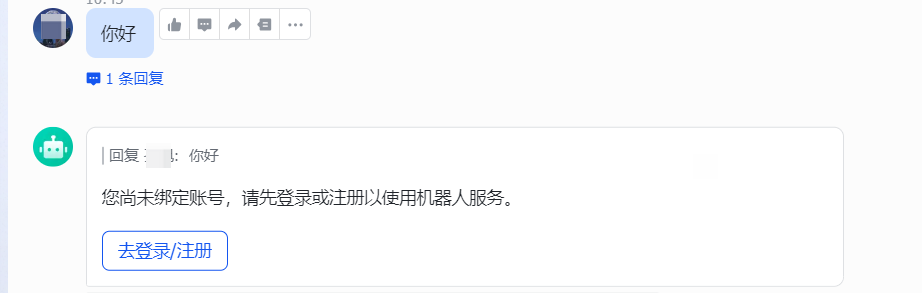
On first use, the bot detects that the user has not bound a FinClaw account and replies with a bind card. Click the "Log in / Register" button on the card to open the {bind_base_url}/feishu-bind?token=... page, and follow the prompts to log in (or register) a FinClaw account to complete binding.
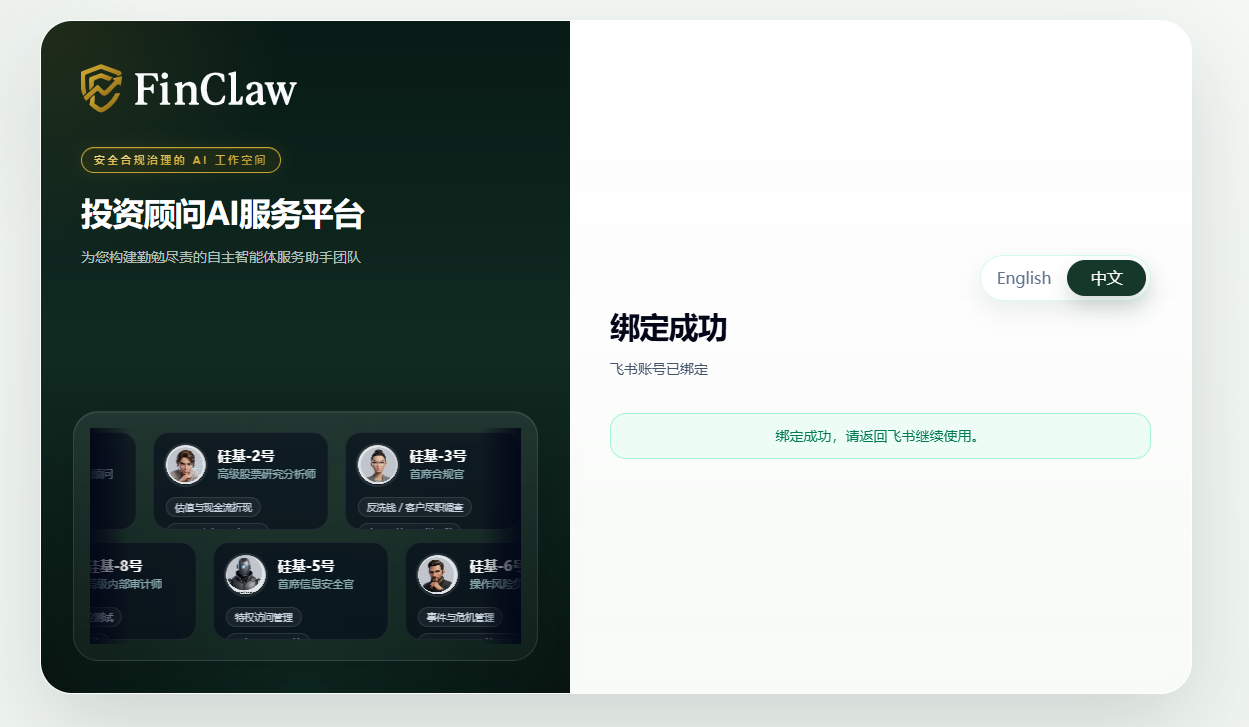
Once bound, the user can chat with the bot in Feishu normally.
FAQ
| Symptom | Troubleshooting |
|---|---|
| Channel status stays "Available" and never becomes "Connected" | Confirm the App ID / App Secret are correct and the app is released; check feishu-connector logs for WebSocket connection errors |
| The bot does not reply to messages | Confirm im.message.receive_v1 is subscribed and the event mode is "long connection"; confirm the channel is enabled |
| A "configure the bind URL in the admin console" style hint is received | The "Account Binding" bind URL is not set or the save did not take effect; check with the "IM Channel Bind Config" section of doctor.sh |
| No response to messages in a group chat | Group chats require @mentioning the bot to trigger |