
DingTalk Channel Integration
This page guides administrators through DingTalk bot integration: creating an app and bot on the DingTalk Open Platform, configuring the channel in the admin console, and verifying user binding and conversations. Channel credentials are configured on the admin console "Channels" page and persisted to identity-service; do not use DINGTALK_* environment variables (see Business Configuration - Channel Connectors).
Prerequisites
- A DingTalk developer console account (
https://open-dev.dingtalk.com), with developer permission in the organization. - FinClaw deployed, with an admin account registered and listed in
ADMIN_EMAILSin.env(see Admin Registration). - dingtalk-connector running normally (default port 26462, health check
GET /health, see Health Check).
Create the App on the DingTalk Open Platform
Create the App and Get Credentials
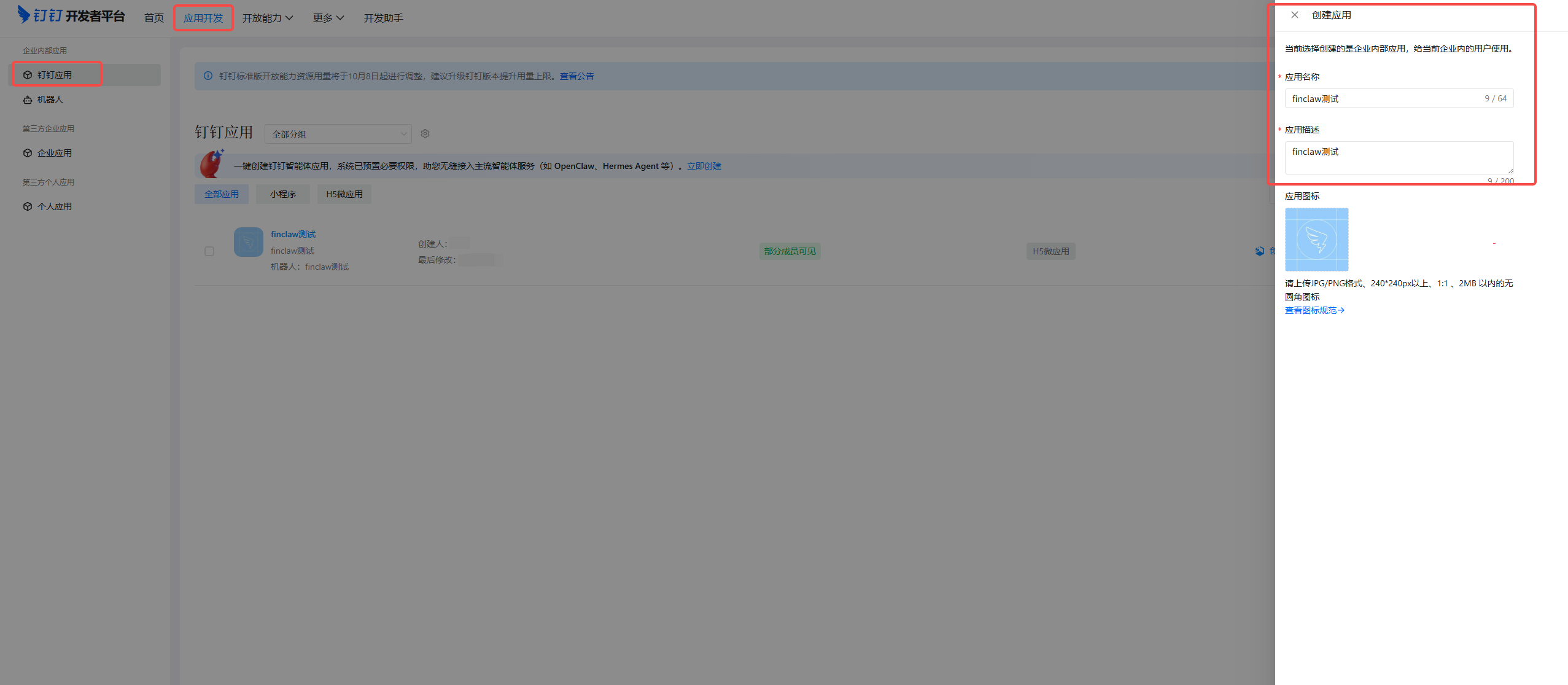
Open https://open-dev.dingtalk.com in a browser, sign in with the DingTalk administrator account, go to "App Development", click "Create App", fill in the app name and description, and save.
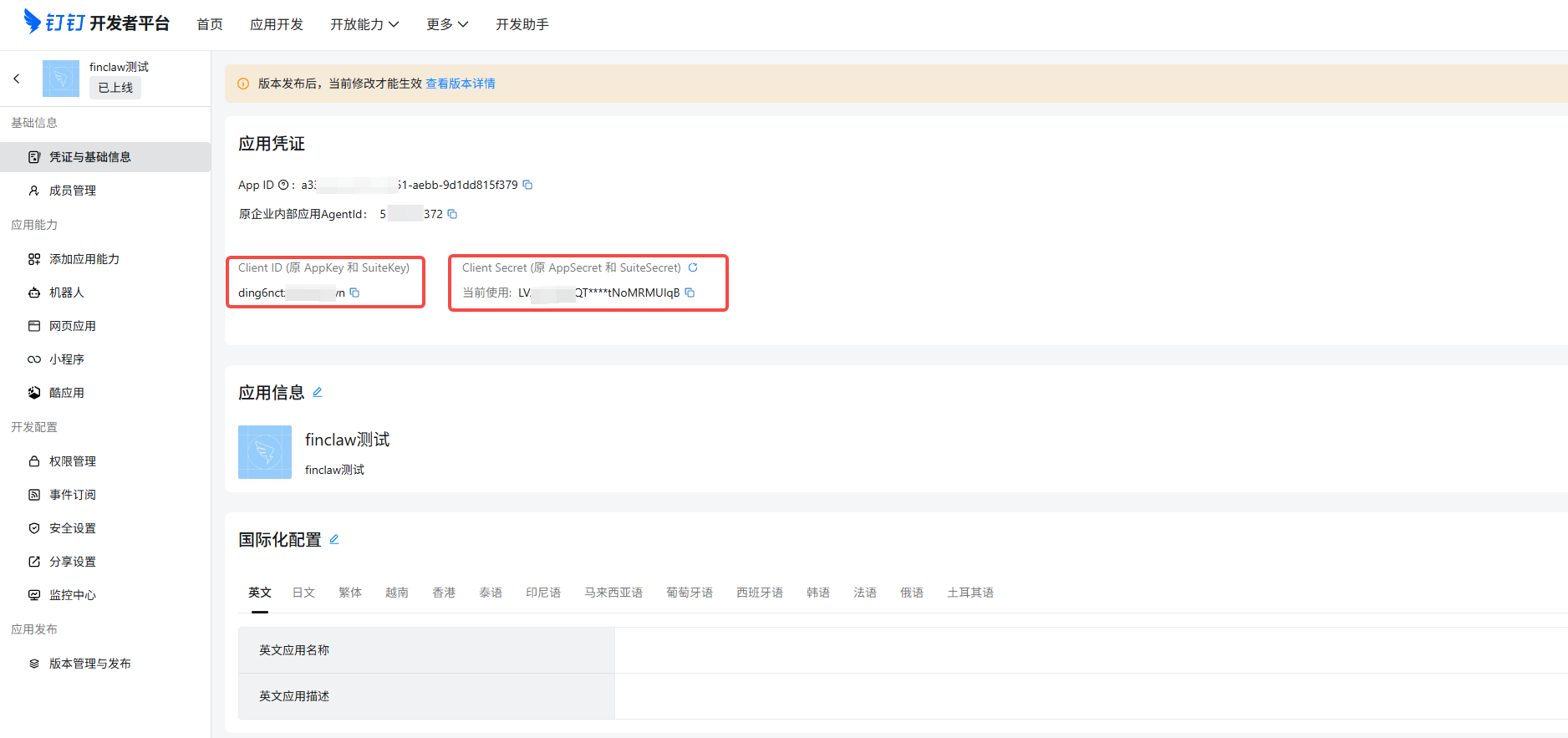
After the app is created, open it from the app list and record the Client ID and Client Secret under "Credentials & Basic Info" (used in the admin console in the next section).
Enable the Bot Capability
Under "Add App Capability" in the left menu of the app detail page, add the "Bot" capability; fill in the required fields such as the bot name on the bot configuration page, and click "Publish" to save the bot configuration.
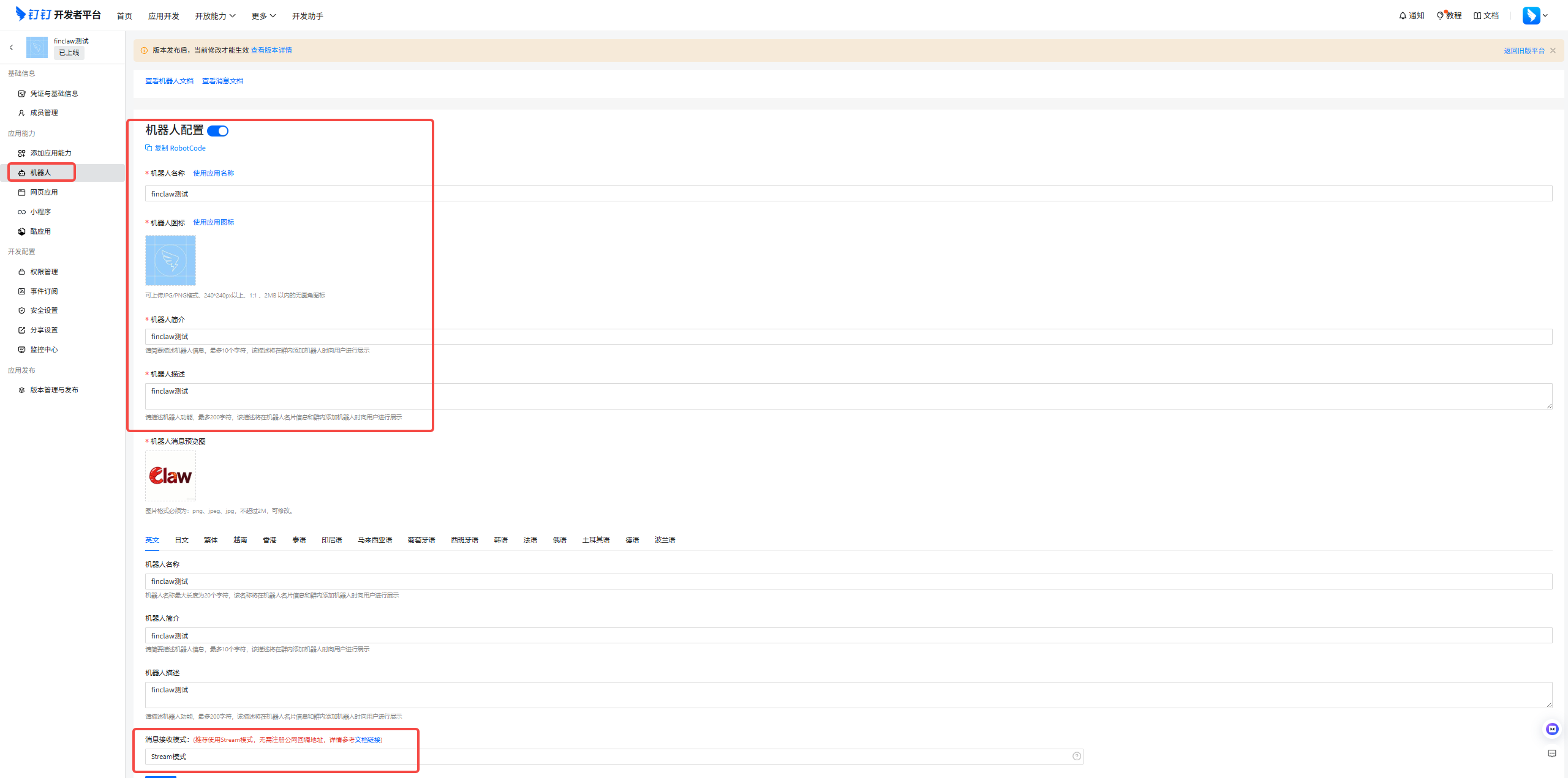
Keep the default Stream mode as the message receive mode; no public callback URL is required.
Grant Permissions
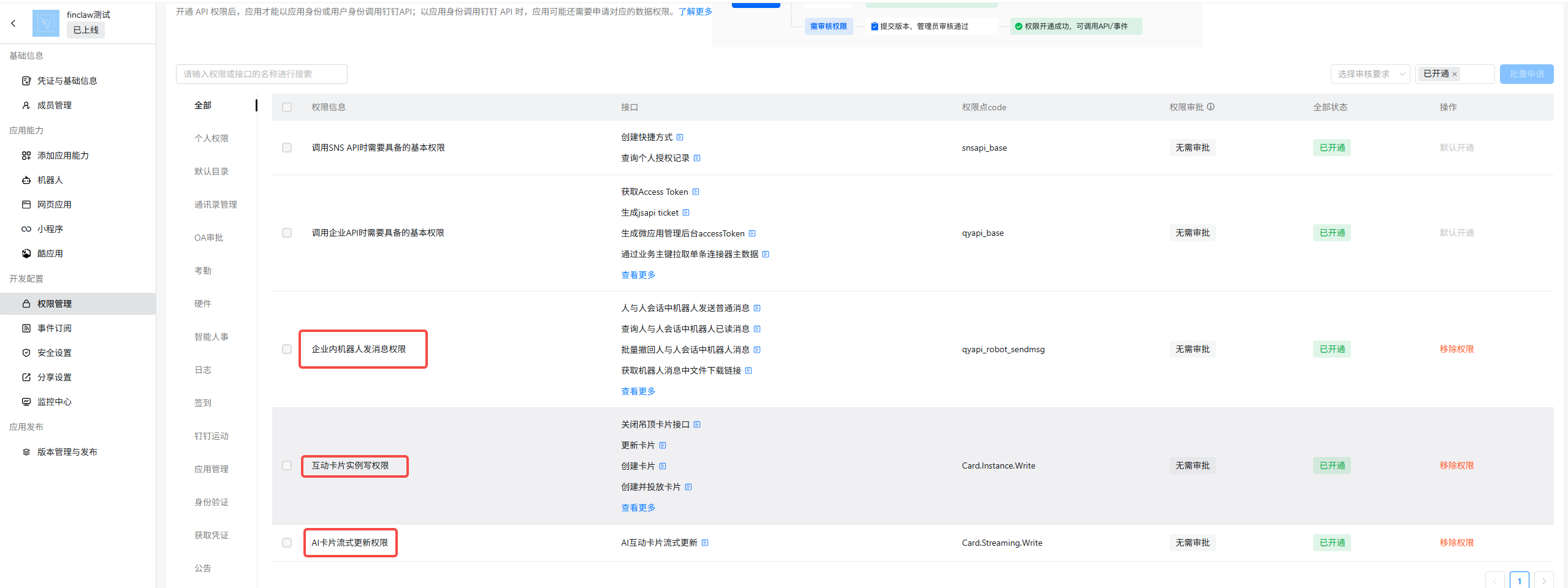
Under "Permission Management", search for and enable the following permissions:
| Permission | Purpose |
|---|---|
Card.Streaming.Write | Update interactive cards (incremental refresh of streaming replies) |
Card.Instance.Write | Create interactive cards |
qyapi_robot_sendmsg | Send messages as the bot |
Release the App
Under "Version Management & Release", click "Create New Version", fill in the version number and description, choose the app availability scope as needed, and save to publish.
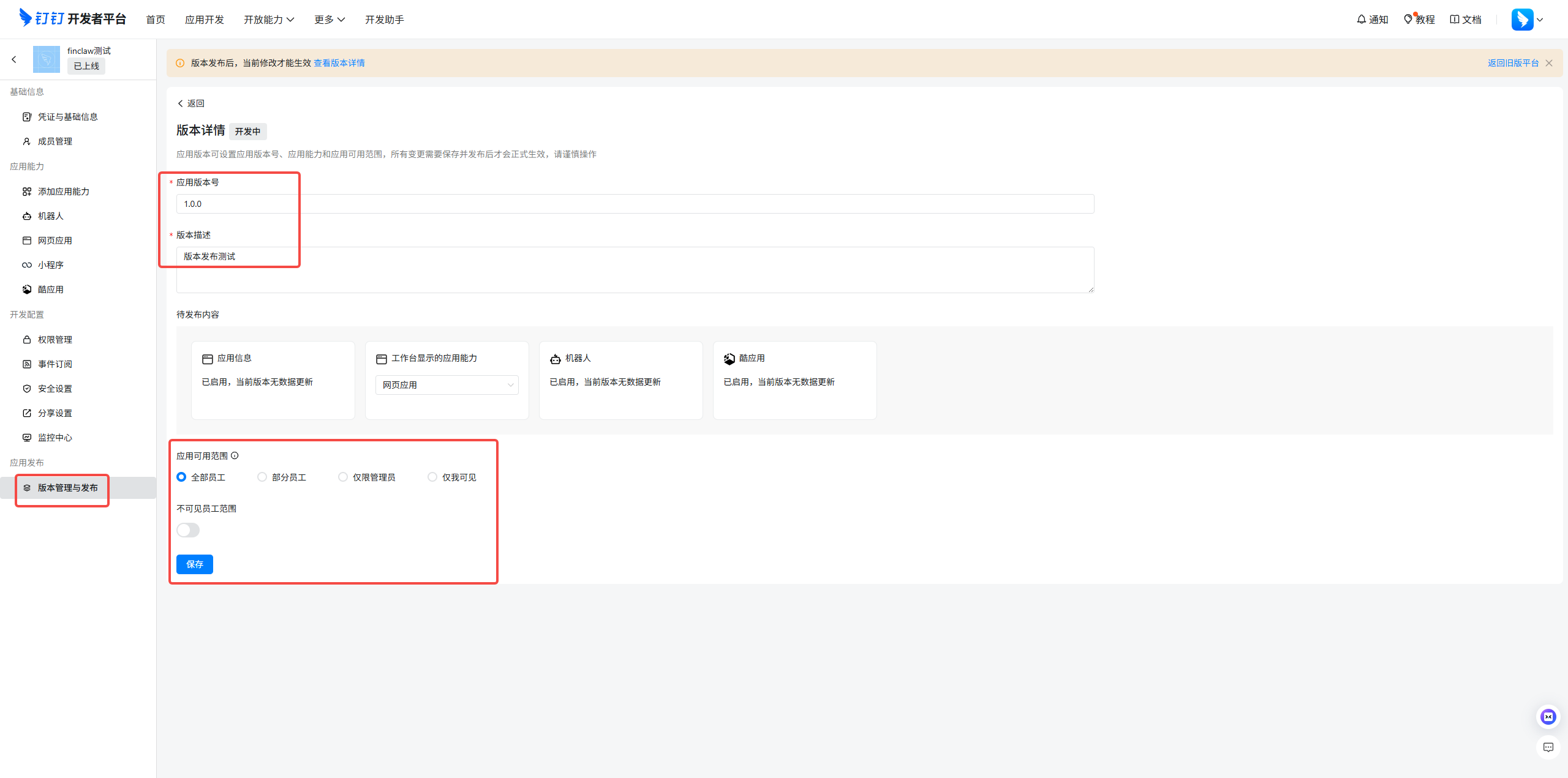
Verify: the app detail page shows an "Online" status.
Configure the Channel in the Admin Console
Open the FinClaw admin console in a browser and sign in with an administrator account. Channel configuration takes effect per tenant: select the target tenant in the tenant dropdown first, then open the "Channel Management" page.
Find the "DingTalk" channel card, click "Edit Credentials", fill in the Client ID and Client Secret recorded in the previous section, and save. Each DingTalk Client ID can belong to only one tenant.
Under "Account Binding", fill in the bind base URL (bind_base_url, the publicly reachable FinClaw web address, e.g. https://chat.example.com). This address is shared by the feishu, dingtalk, and wecom channels; if it was already set when integrating Feishu, it does not need to be set again. When a user taps the bind link in DingTalk, the page {bind_base_url}/dingtalk-bind?token=... opens to complete login and binding.
Turn on the "Enable" toggle of the DingTalk channel and click "Save".
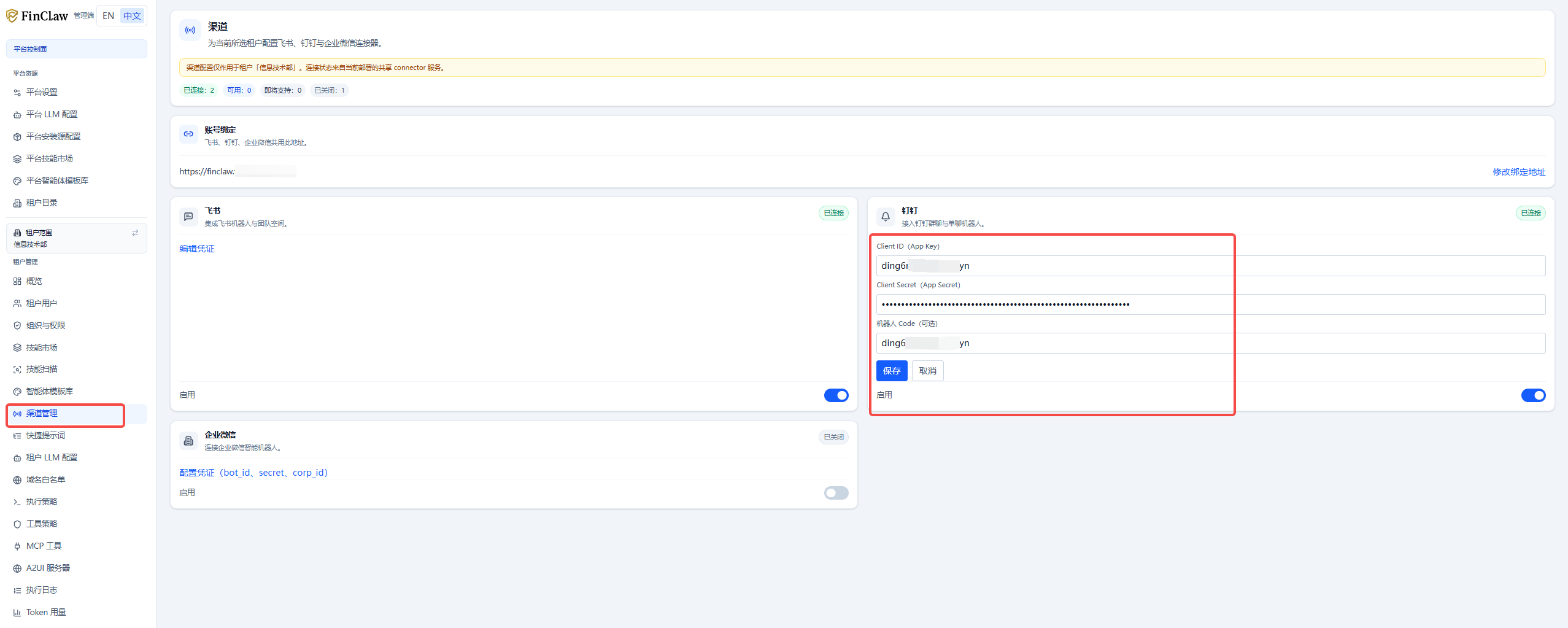
On save, identity-service calls POST /internal/reload on dingtalk-connector to trigger a config reload; the connector applies the new config in-process (rebuilding the DingTalk Stream connection as needed) without restarting the container.
Verify:
- The channel card status changes from "Available" to "Connected" (the status comes from the connector's Stream connection report; allow a few seconds after saving and refresh the page).
- dingtalk-connector logs show
dingtalk.connector.reloadanddingtalk.connector.connectevents (see Logs). - You can run
doctor.sh; its "IM Channel Bind Config" section checks whether the bind configuration is complete (see Channel Connectivity Inspection).
User Binding and Usage
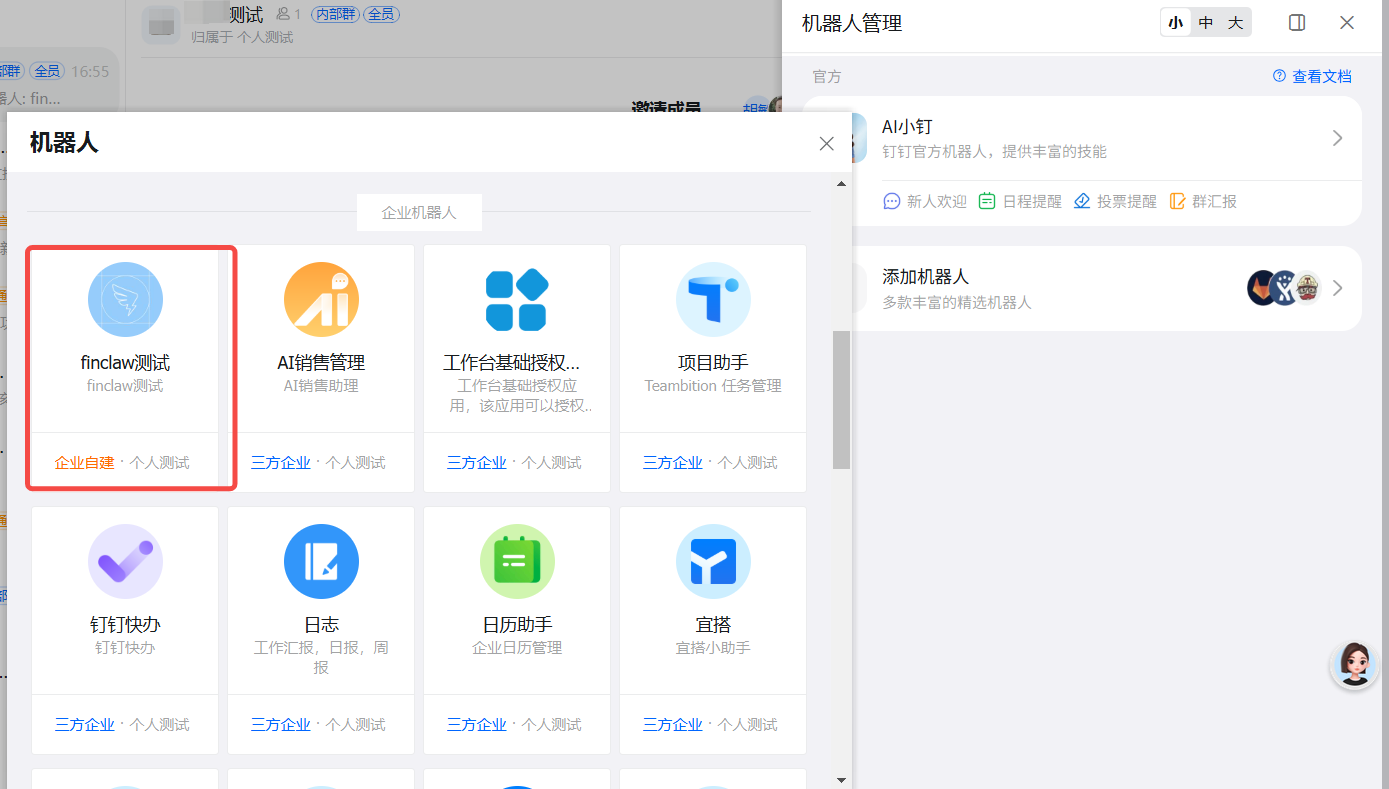
Group chat: open a group chat (the group must belong to the same organization as the app), go to "Group Settings" -> "Bots" -> "Add Bot", search for the published bot and add it; @mention the bot to send messages in the group.
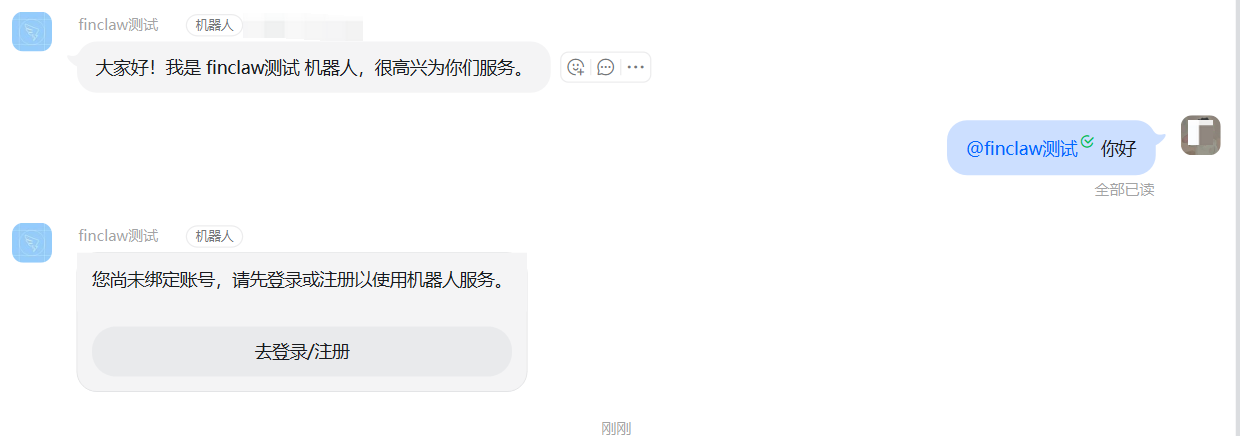
On first use, the bot detects that the user has not bound a FinClaw account and replies with a bind link. Click the link to open the {bind_base_url}/dingtalk-bind?token=... page, and follow the prompts to log in (or register) a FinClaw account to complete binding.
Once bound, the user can chat with the bot in DingTalk normally.
Private chat: search for the bot name in the top search box of DingTalk, open a private chat, and send messages directly.