
License Not Expired
Step Instructions:
Access Operations Center Homepage
- Open your browser and visit the FinClip system's Operations Center address.
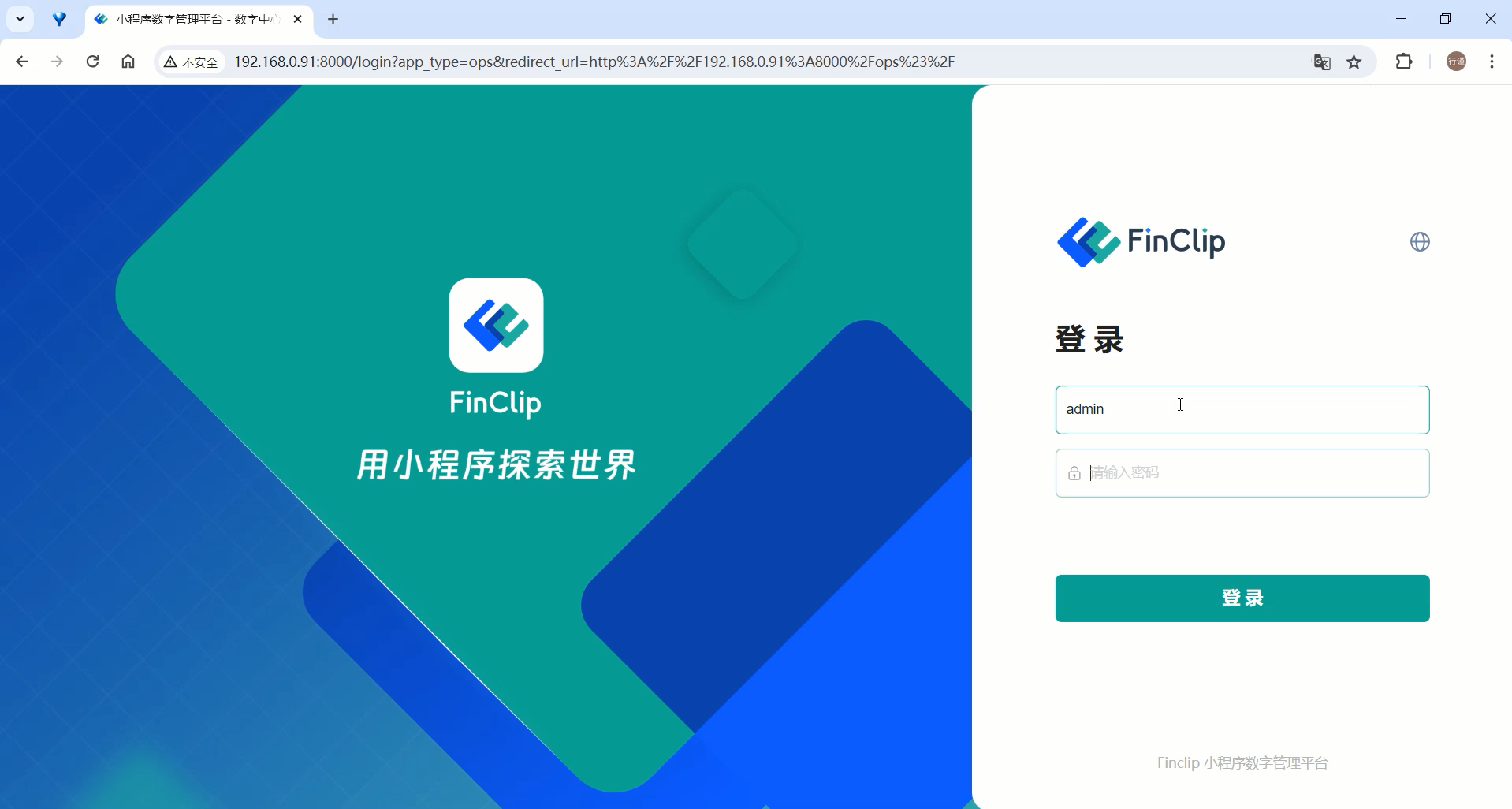
Login to System
- Enter the administrator username and password on the login page to log in.
Access License Update Page
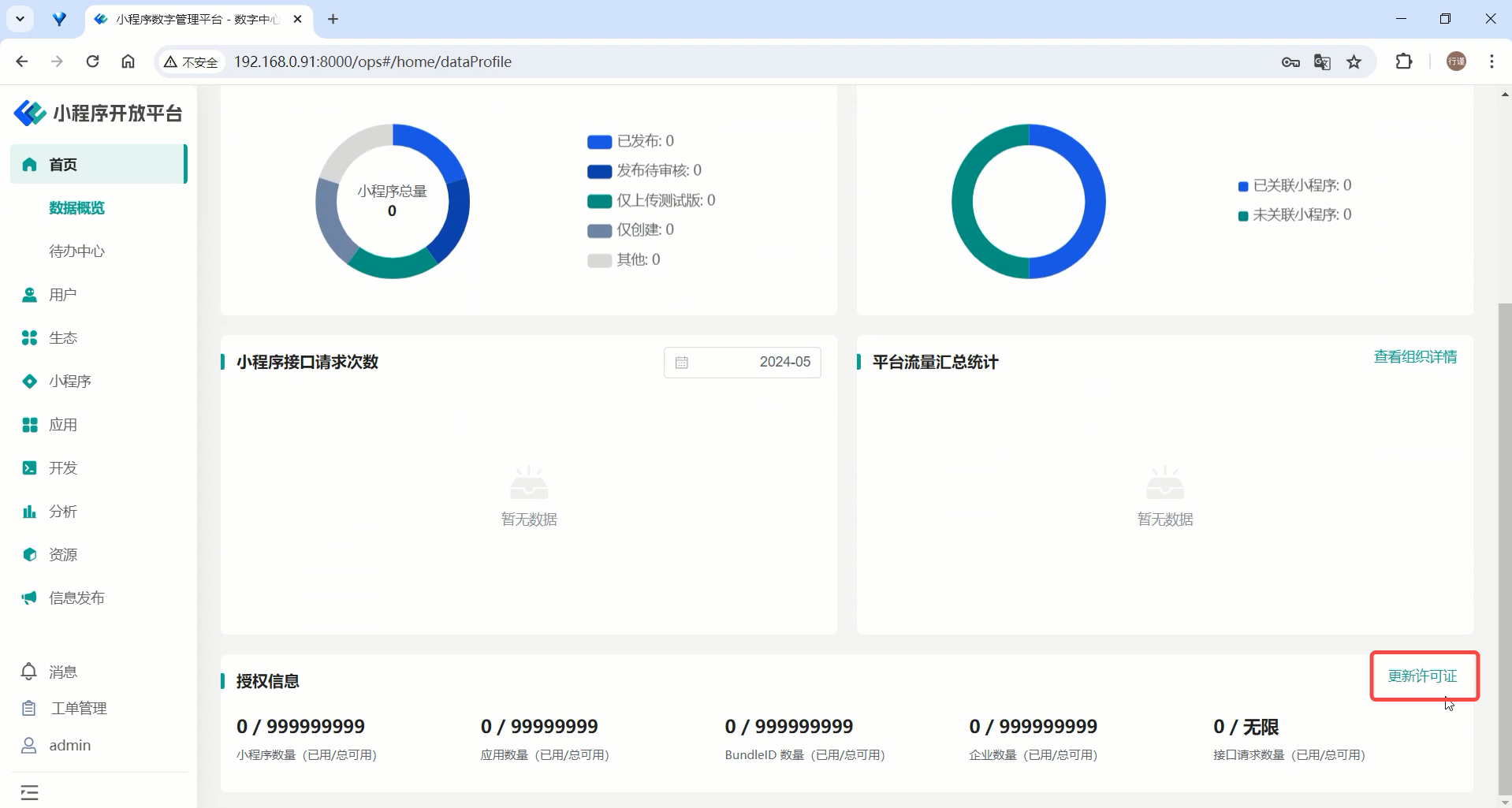
After successful login, you will enter the system's homepage interface.
In the lower right corner of the homepage, there is an "Update License" button.
Click the "Update License" button, and the system will pop up a license update dialog box.
Enter New License
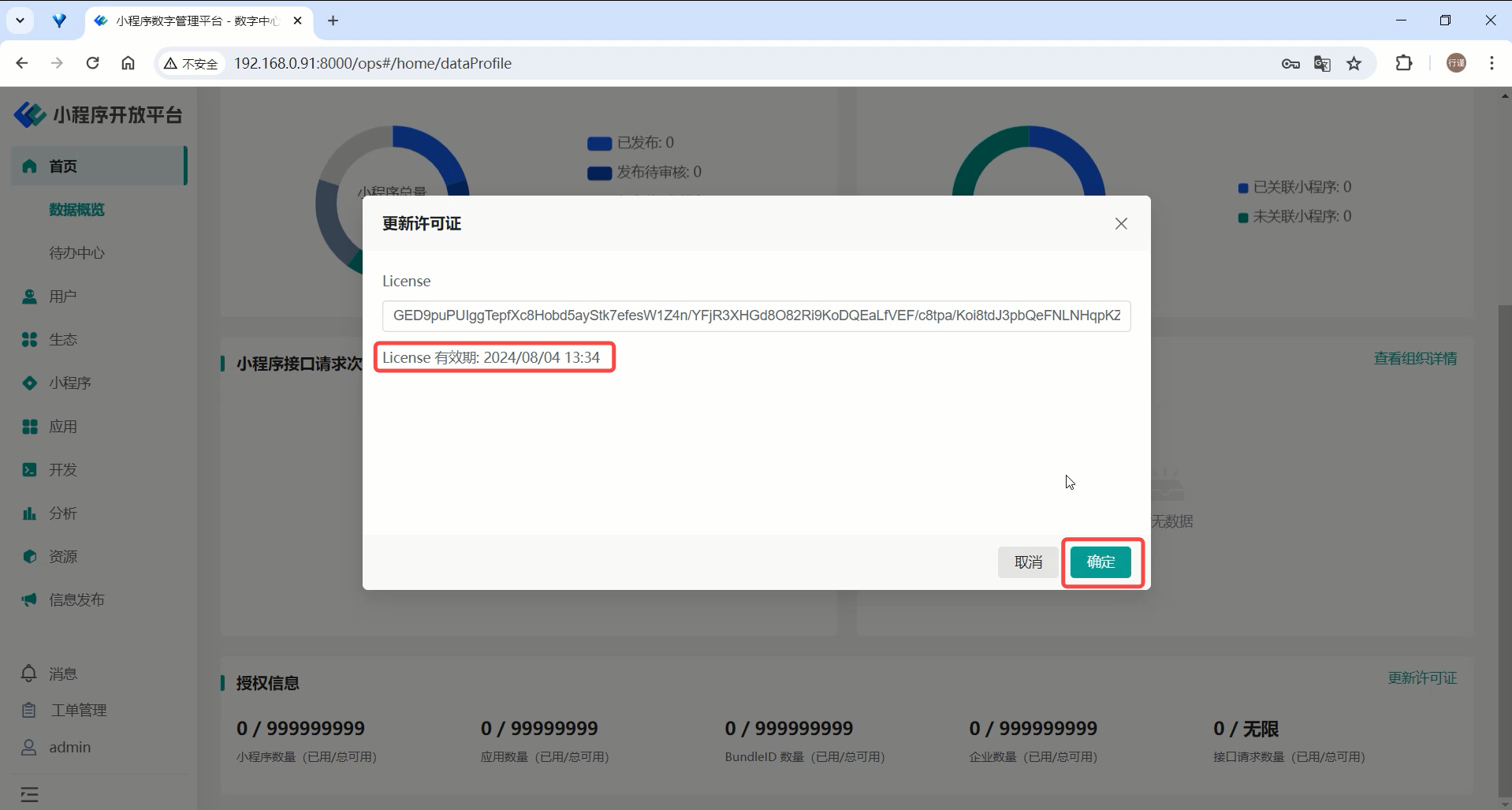
Enter the new license.
Check if the license time is correct, then click the "Confirm" button to update.
Update Complete
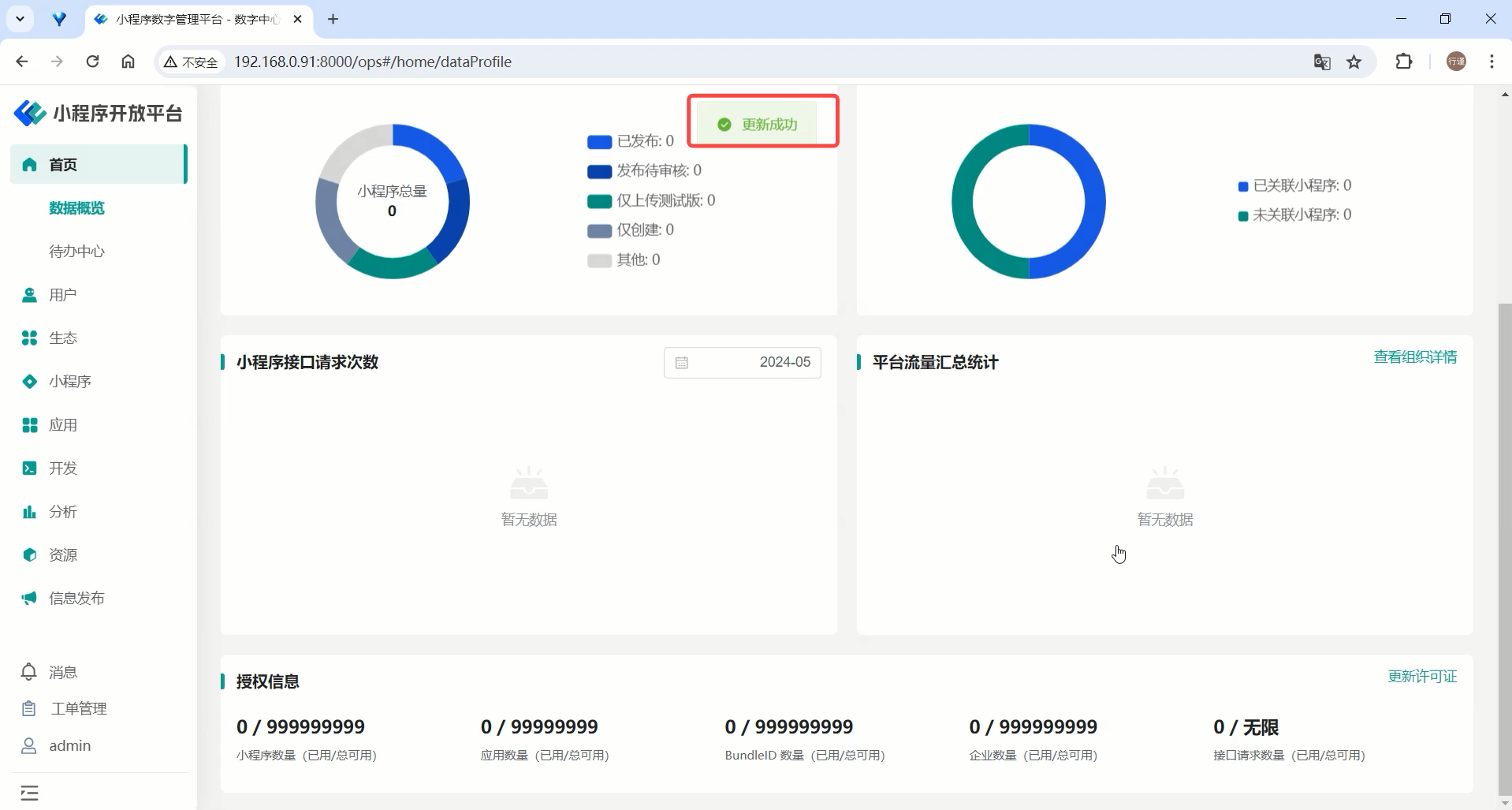
- After the system prompts that the license update is successful, you can use the system functions normally, and the license validity period will be updated.
License Already Expired
Step Instructions:
Access Operations Center Homepage
- Use your browser to visit the FinClip system's Operations Center address.
Login to System
- Enter the administrator username and password on the login page to log in.
System Prompts License Expired
- After login, the system will automatically detect the license status. If your license has expired, the system will pop up a prompt after login informing you that the license has expired and requires updating.
Enter New License
- In the update prompt box that appears, find the input box and paste or enter the new license key.
- Confirm that the license key format is correct.
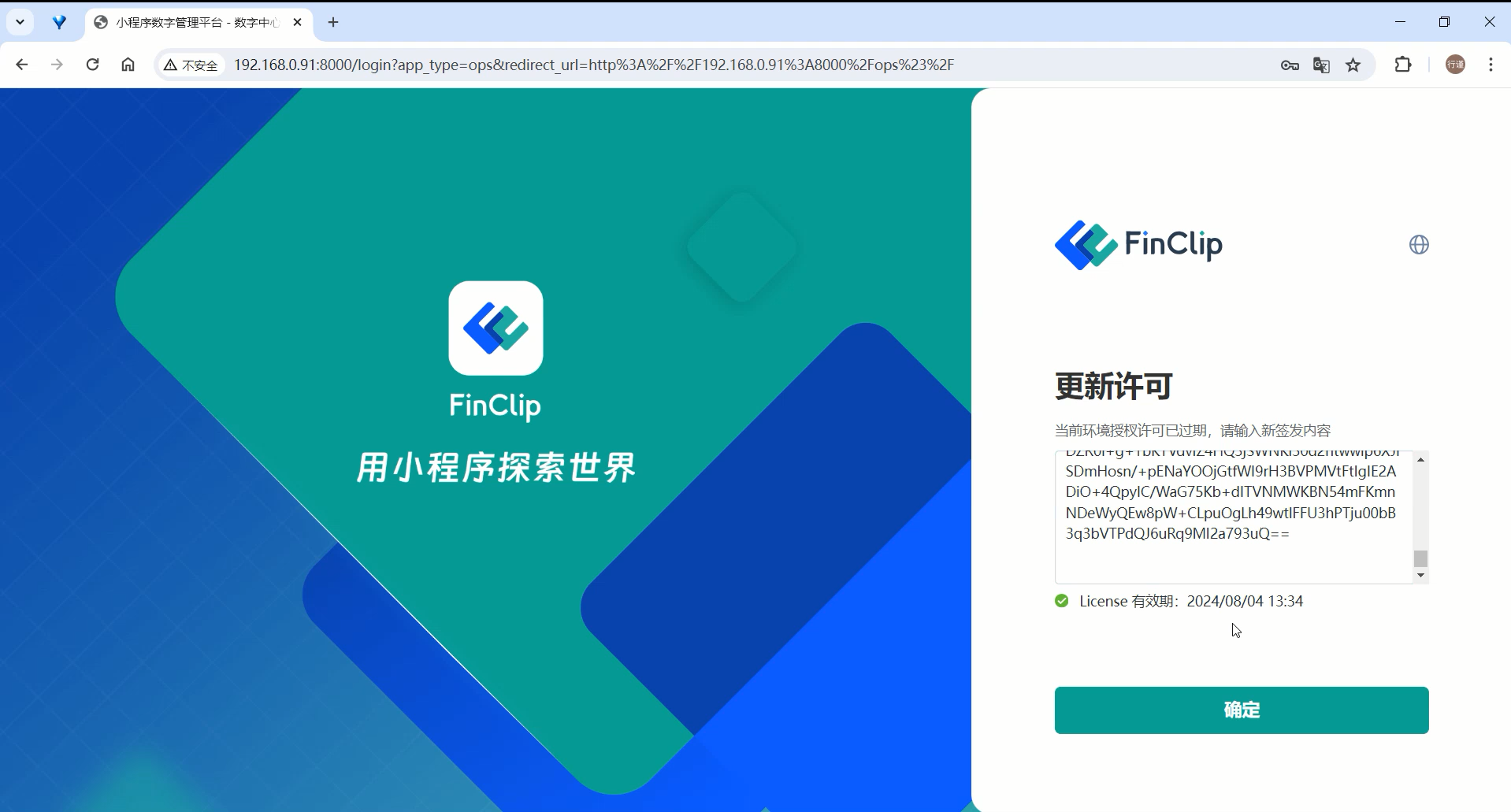
Click "Confirm" to Update
- After ensuring the license information is accurate, click the "Confirm" button, and the system will begin updating the license.
- Note: This process may take a few seconds, please do not close the browser window.
License Update Successful
- After successful update, the system will redirect to the homepage, and you can normally access and use all system functions.
Common Issues and Solutions
1. What if an error message appears during the update process?
- Please check if the entered license key is correct, ensuring there are no extra spaces or characters.
- If you still cannot update, please contact FinoGeeks personnel and provide detailed error information for further troubleshooting.
2. What if the system prompts "Network Error"?
- After license expiration, some interfaces may report errors prompting "Network Error". Just proceed with the normal update steps. If the problem persists, please contact technical support.